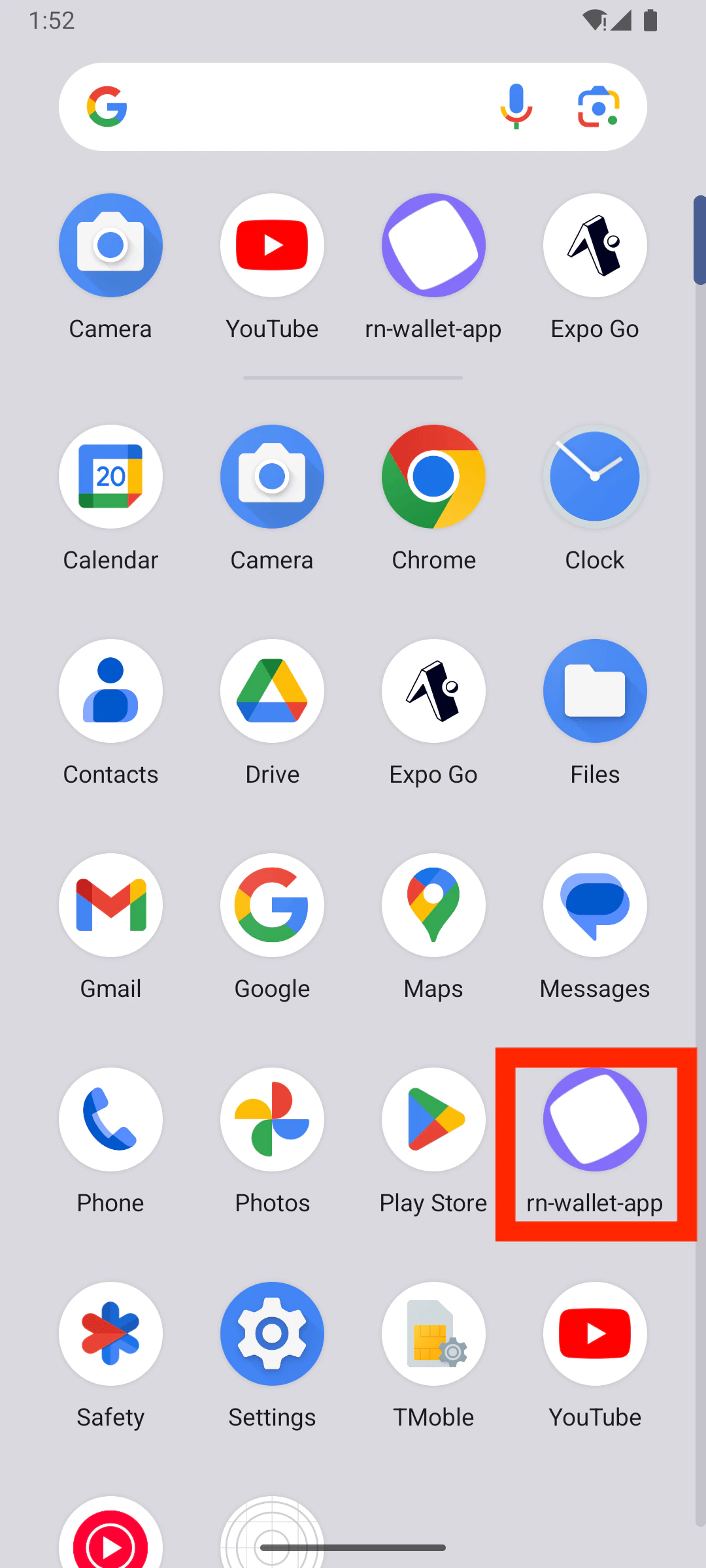
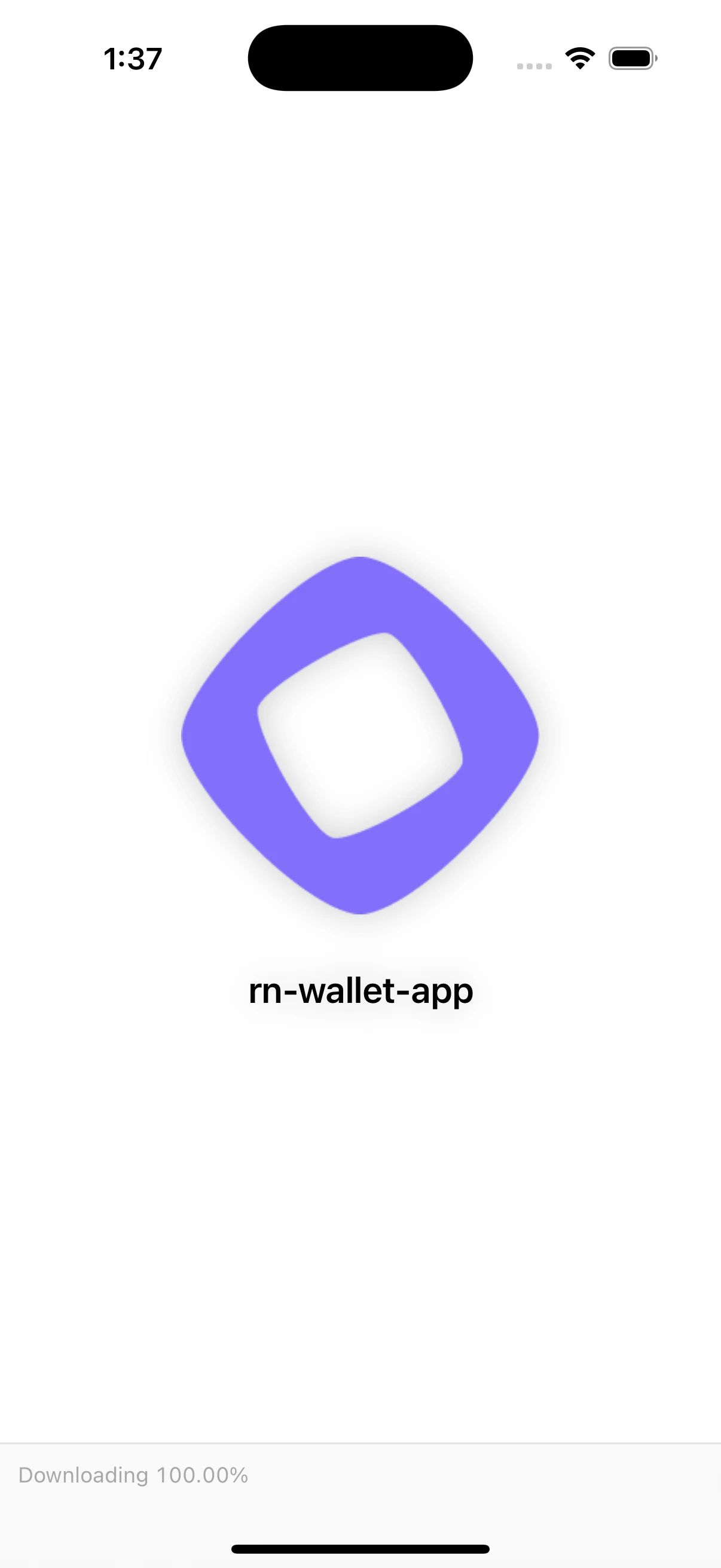
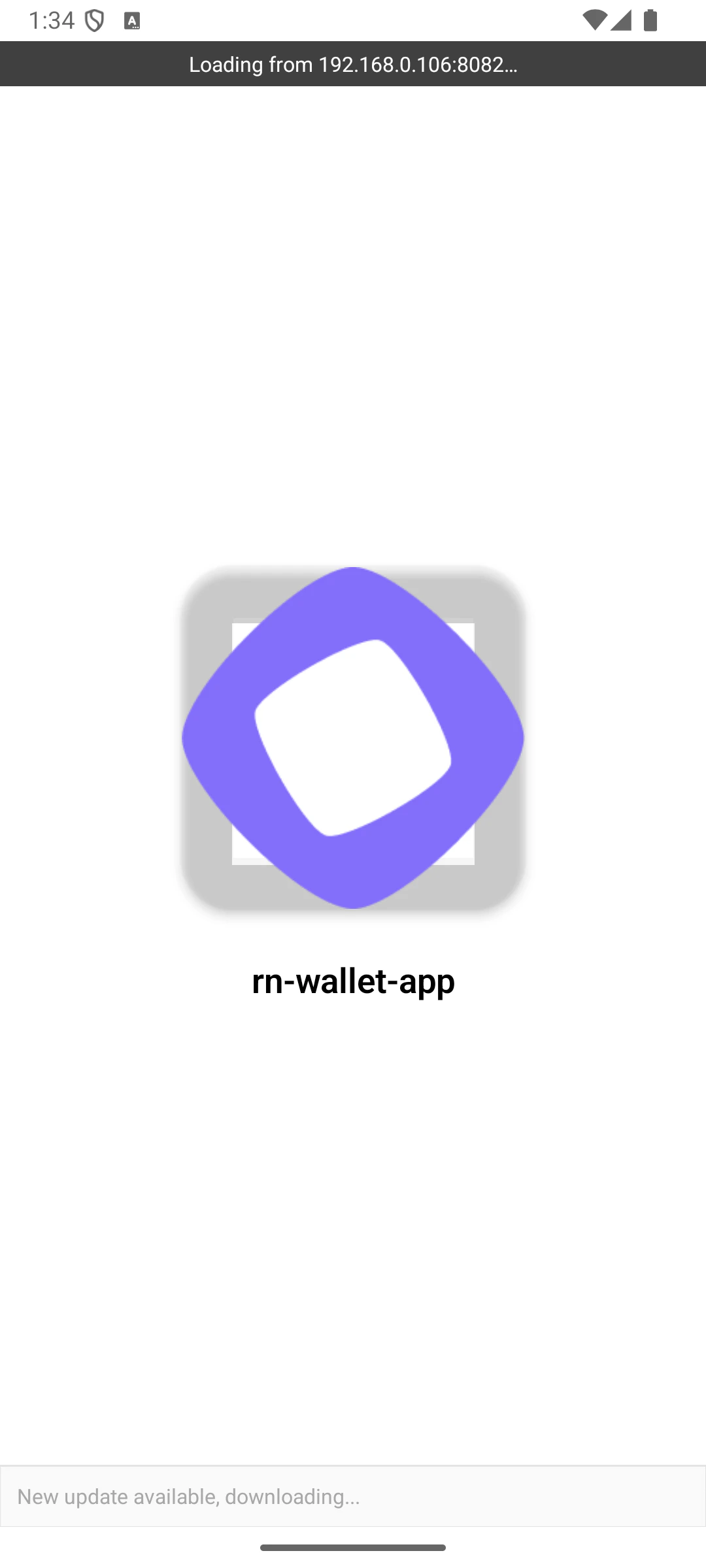
Sponsored transactions enable users to interact with blockchain applications without needing to pay gas fees themselves, improving accessibility, user experience, and onboarding - especially for newcomers unfamiliar with crypto. This guide walks you through using the sponsored transactions template which uses Expo, React Native, Privy embedded wallet and Pimlico paymaster to build a mobile app with sponsored transactions on Monad. You can start developing by editing the files inside the app directory. This project uses file-based routing.
This repo also has a demo branch that you can switch to if you’d like to inspect a completed version of the app first.

Prerequisites

  • Android Studio (API version 35 and above)
    • Guide to setup Android Studio for Expo is available here
  • XCode
    • Guide to setup iOS Simulator for Expo is available here
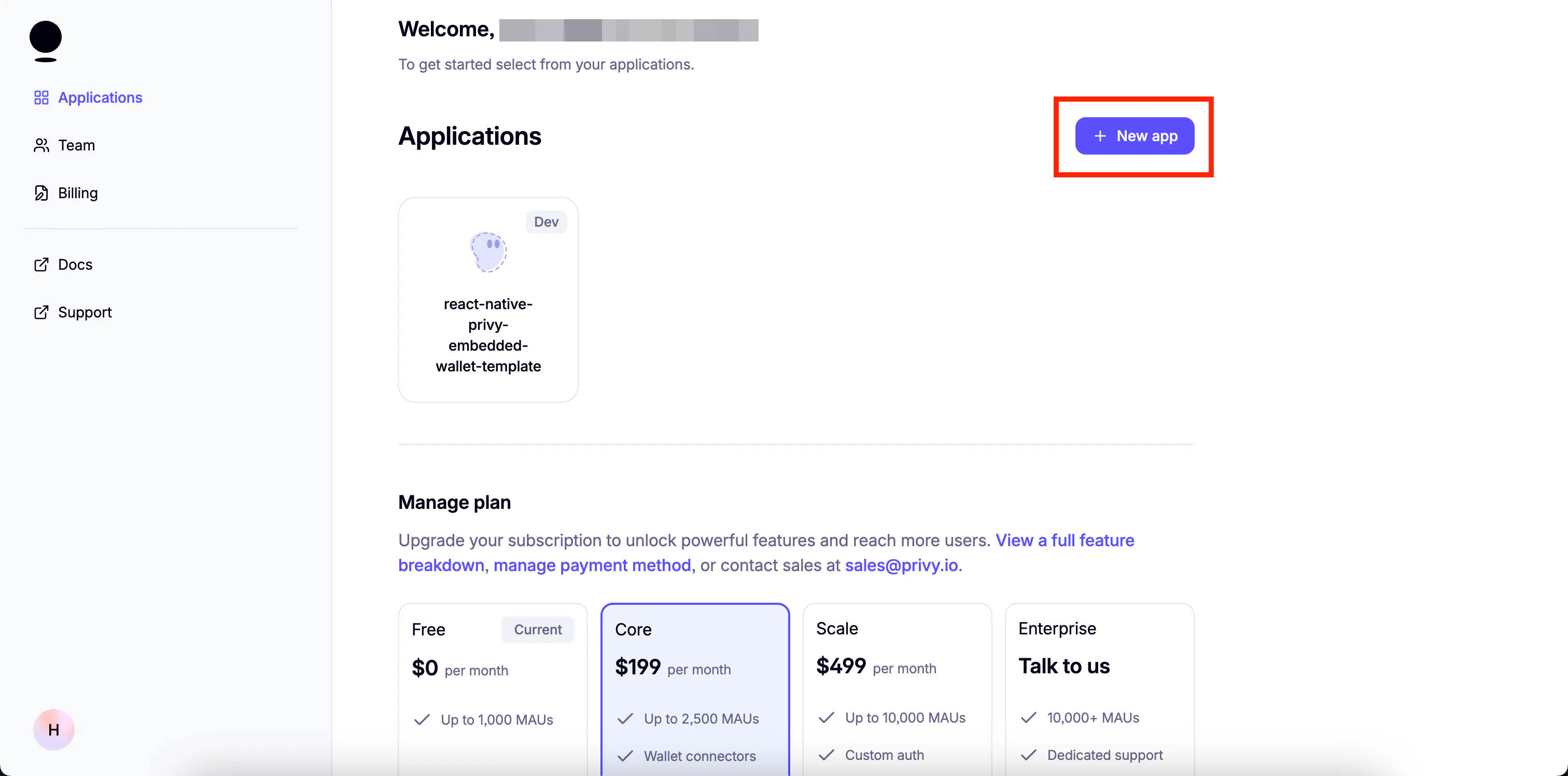
  1. Create app:
create appnaming the app
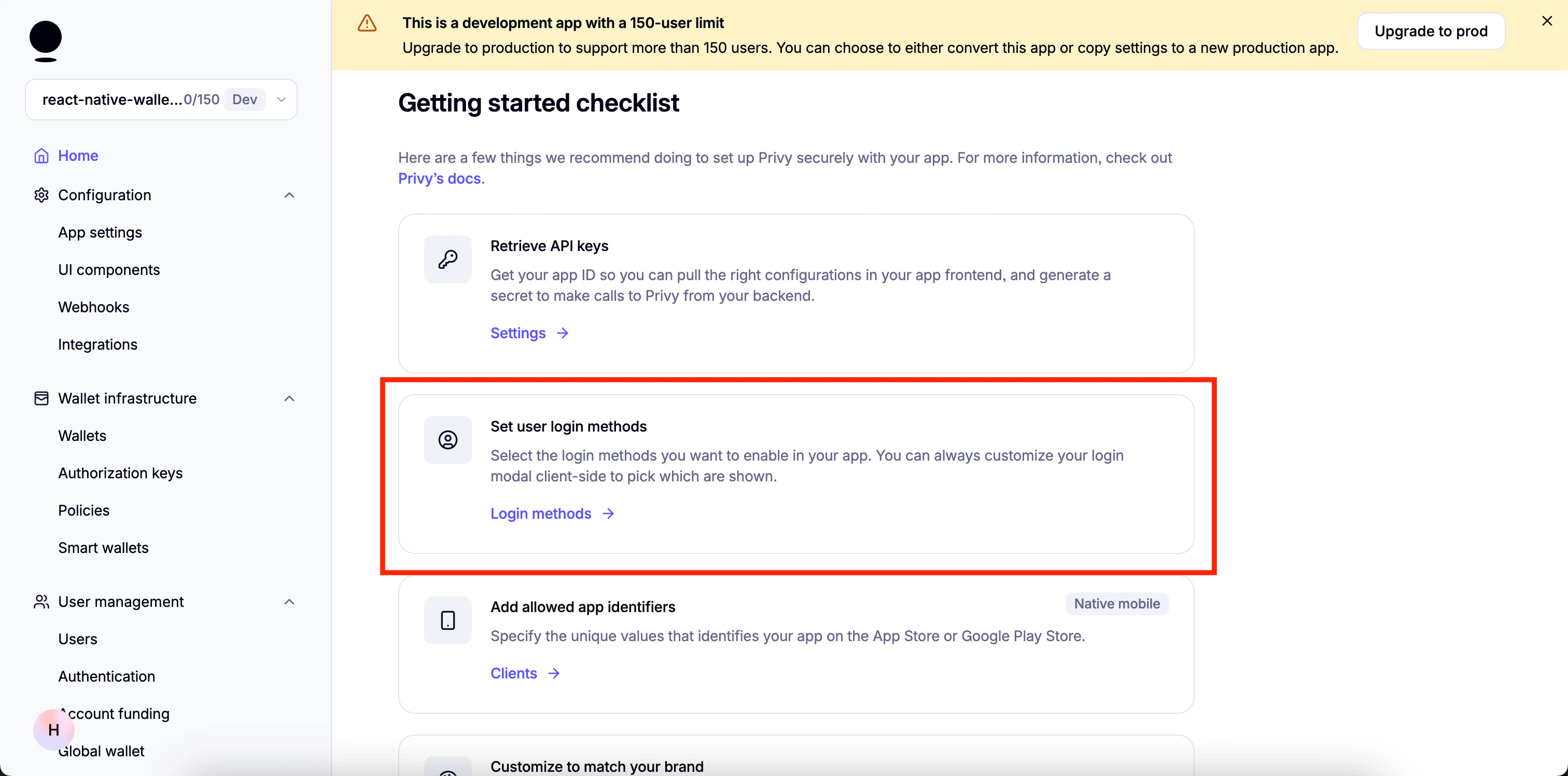
  1. Set up login methods:
set up login methods
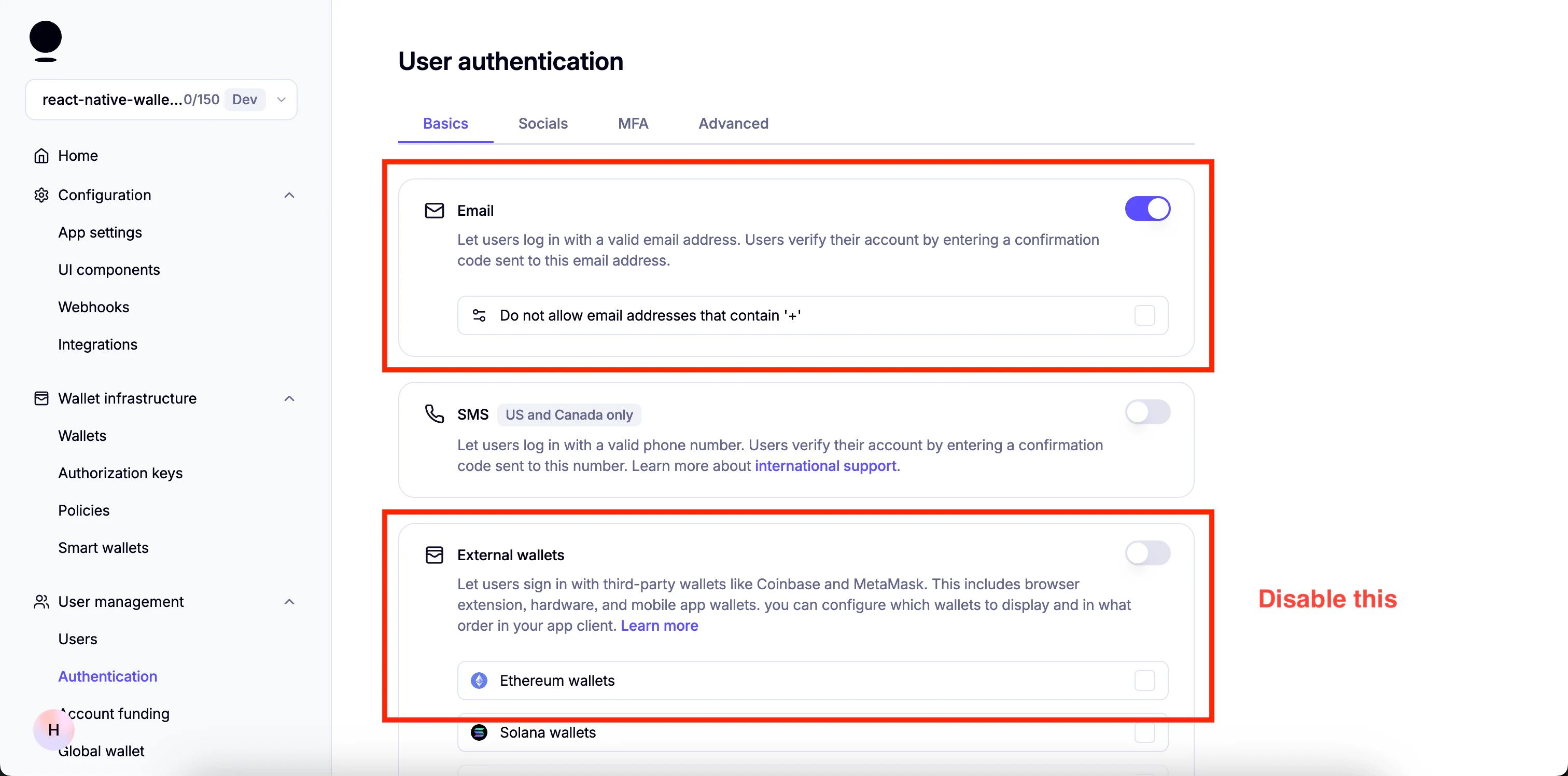
  1. Enable email:
enable email
  1. Enable “Automatically create embedded wallets on login” and select “EVM Wallets”:
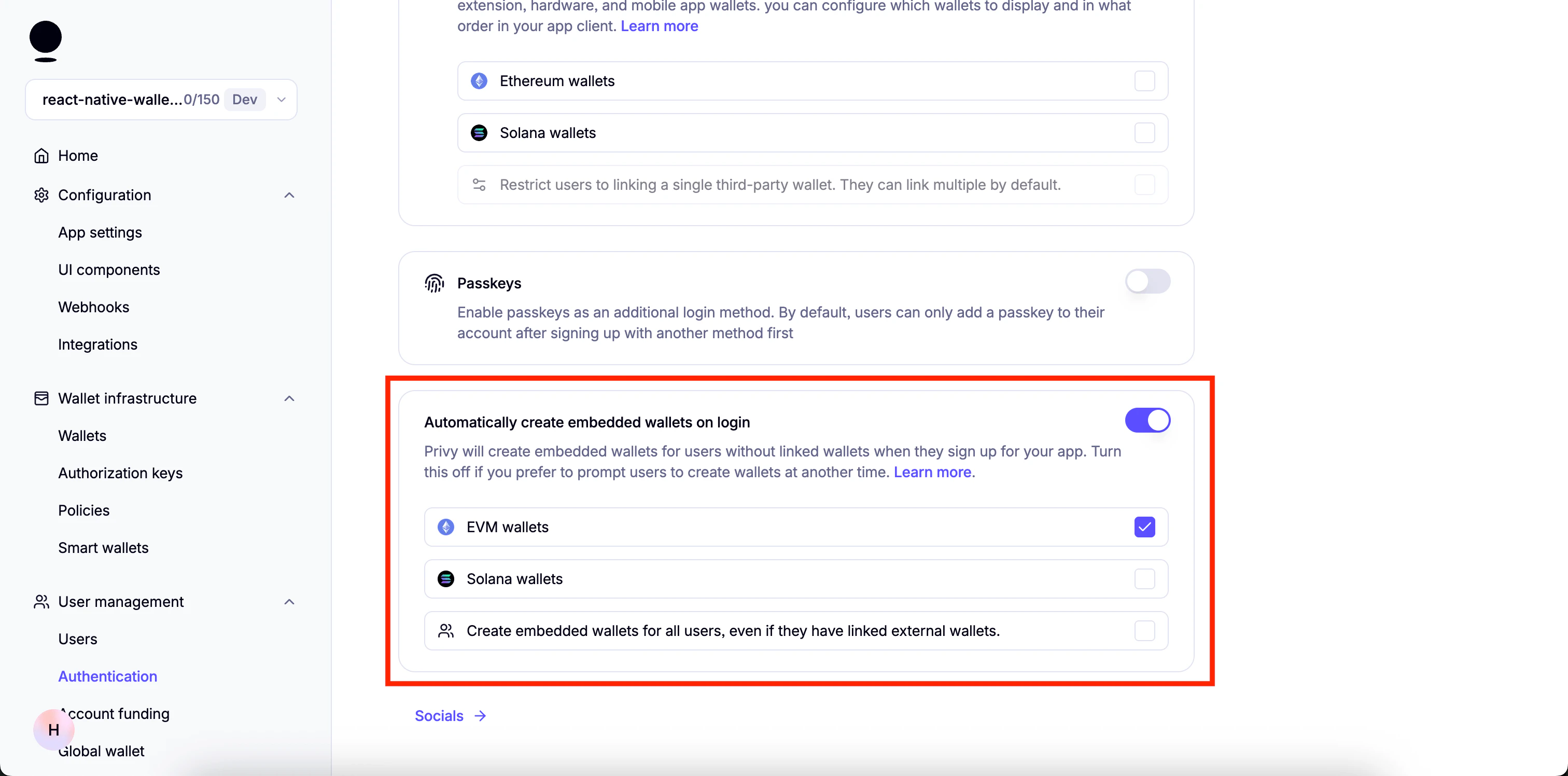
create wallets automatically
  1. Disable everything in Socials.
  2. Go to “Advanced” and Make sure only “Web2: Email, SMS, and socials” under “Prioritize options displayed” is enabled:
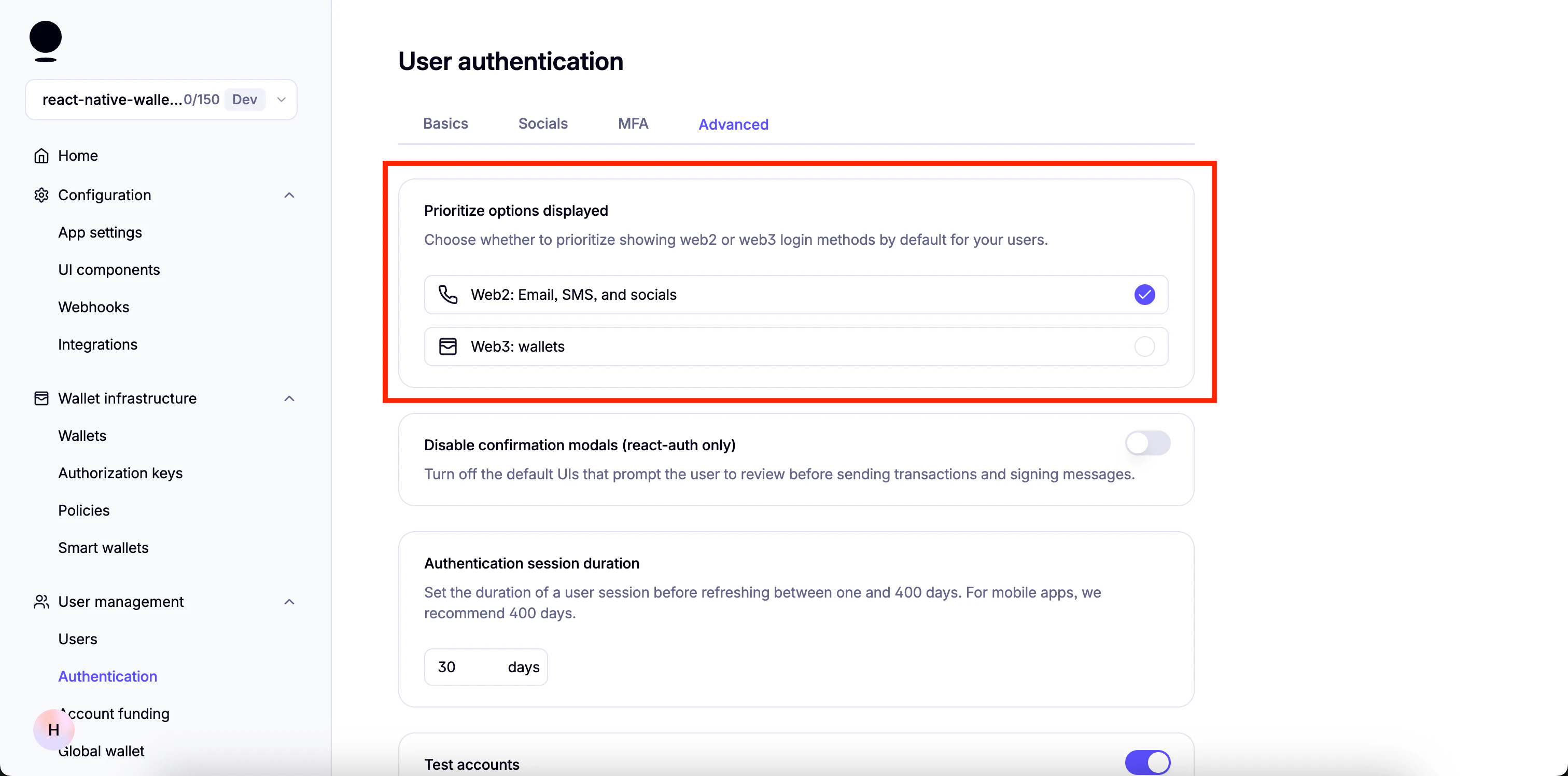
prioritize web2 methods
You can enable “Test Accounts” for testing purposestest wallets
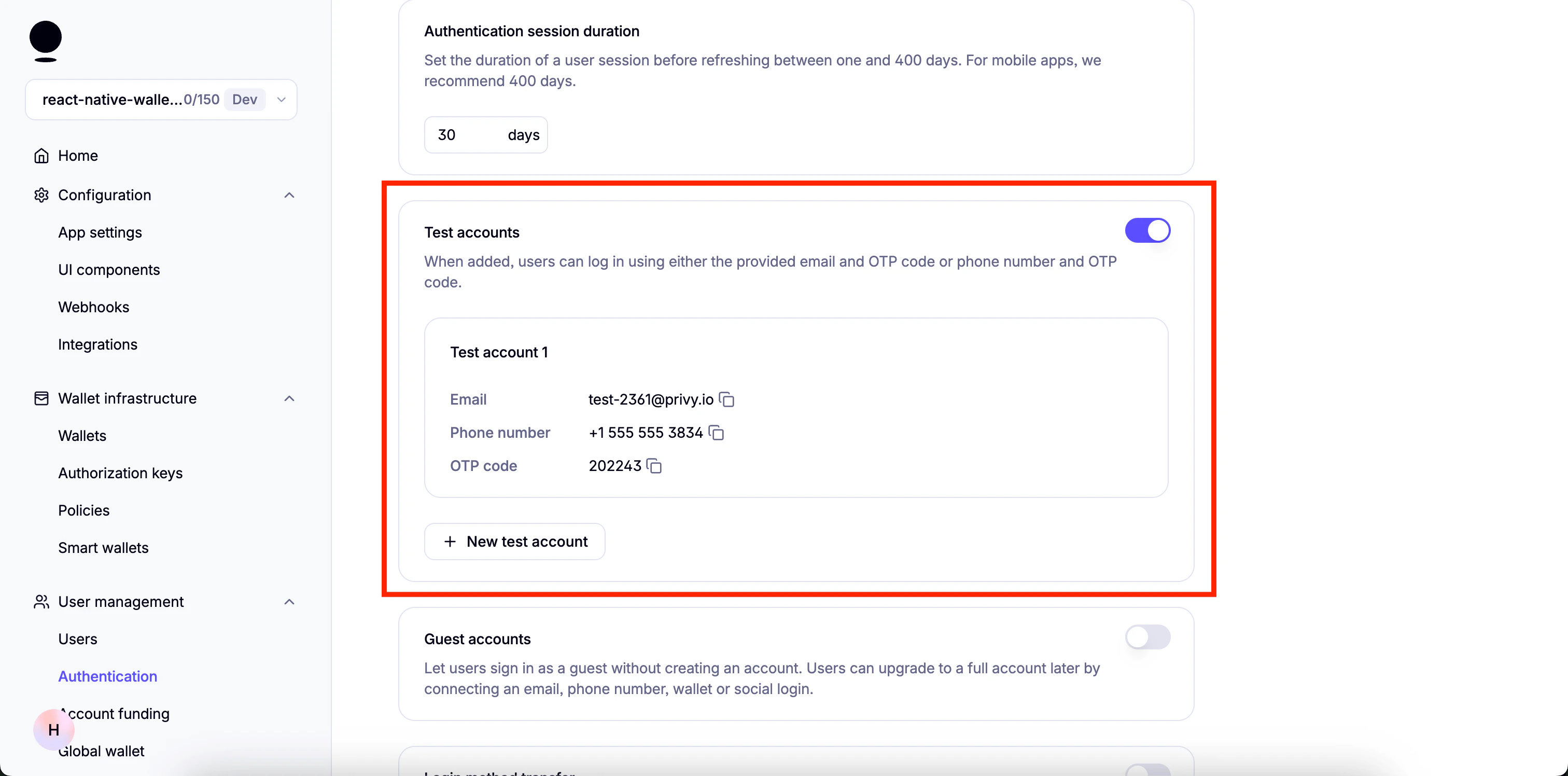
A few more steps are required but we will continue once the dependencies for the project are installed.

Get started

This template also has a demo branch that you can switch to in order to view the demo project.You can switch using the following command:
git checkout demo

Install dependencies

npm install

Set up the environment variables

  • Create a copy of .env.example:
    cp .env.example .env
    
  • Add the following environment variables to it
    EXPO_PUBLIC_PRIVY_APP_ID=
    EXPO_PUBLIC_PRIVY_CLIENT_ID=
    EXPO_PUBLIC_PIMLICO_BUNDLER_URL=
    
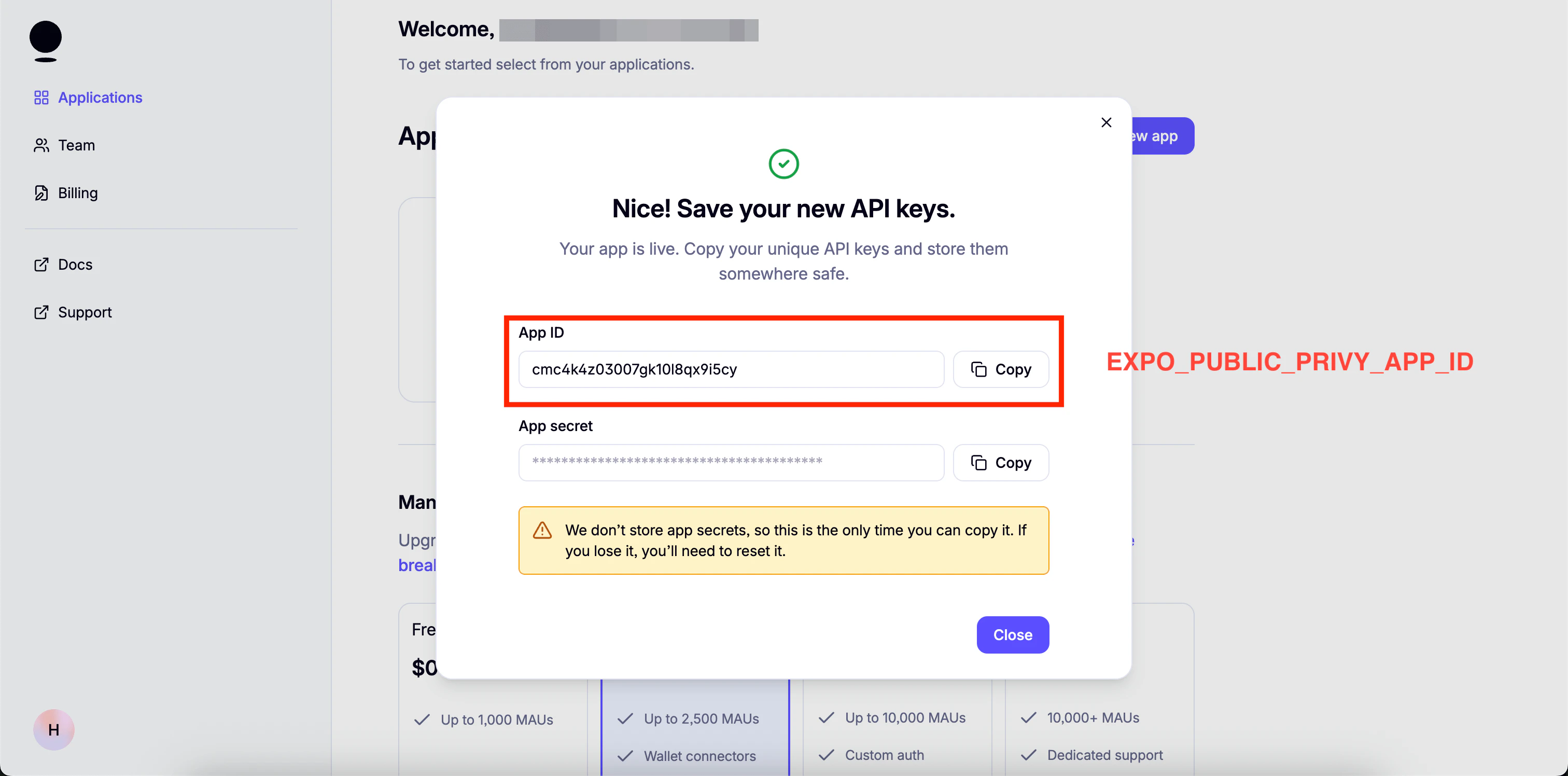
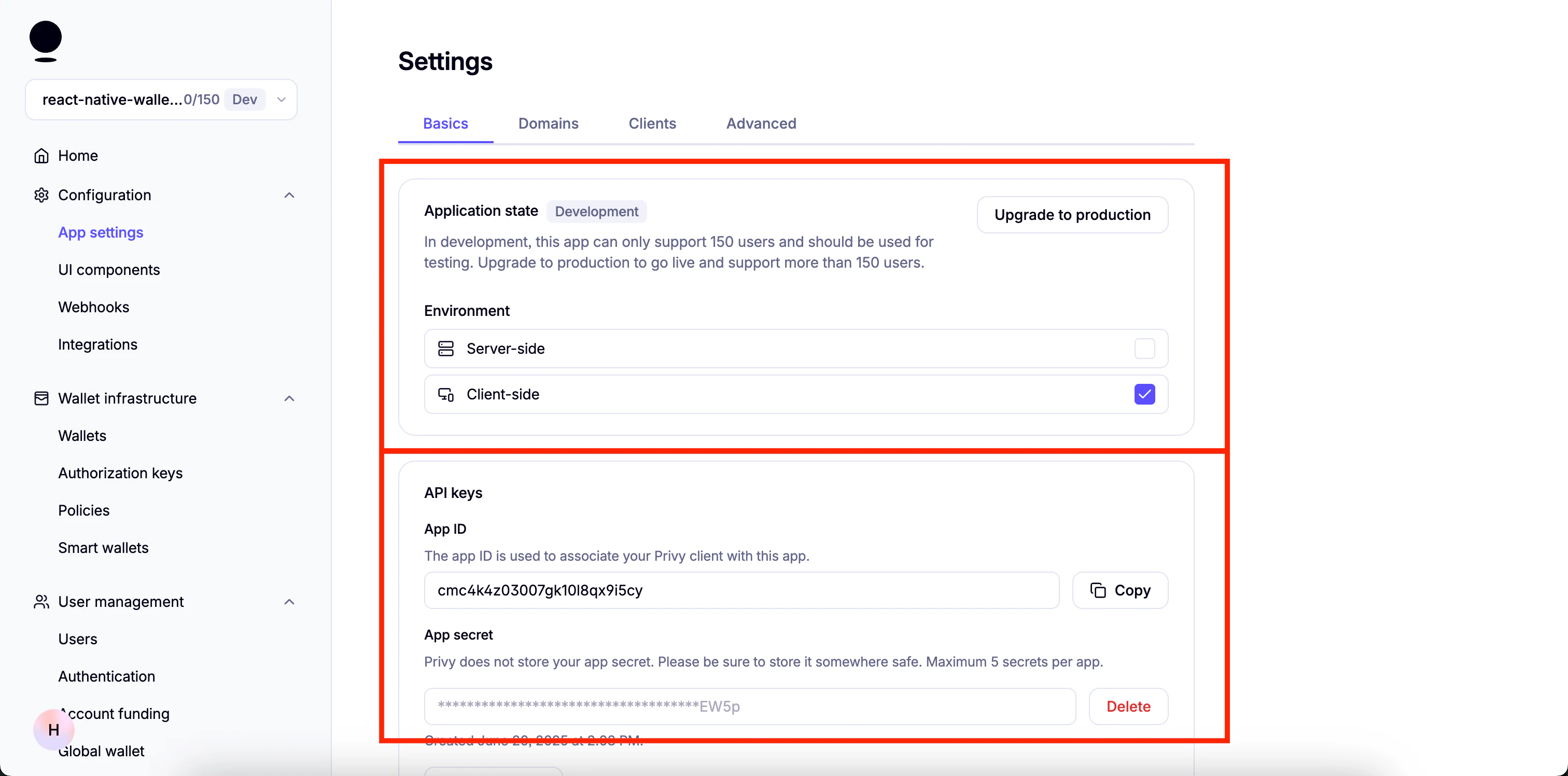
  1. Go to your Privy Dashboard and click on Home for your Privy app and click on Retrieve API keys.
retrieve api keys
  1. You will find App ID under API keys.
api key
  1. Go to your Privy Dashboard, click Home for your Privy app, and click Retrieve API keys.
retrieve api keys
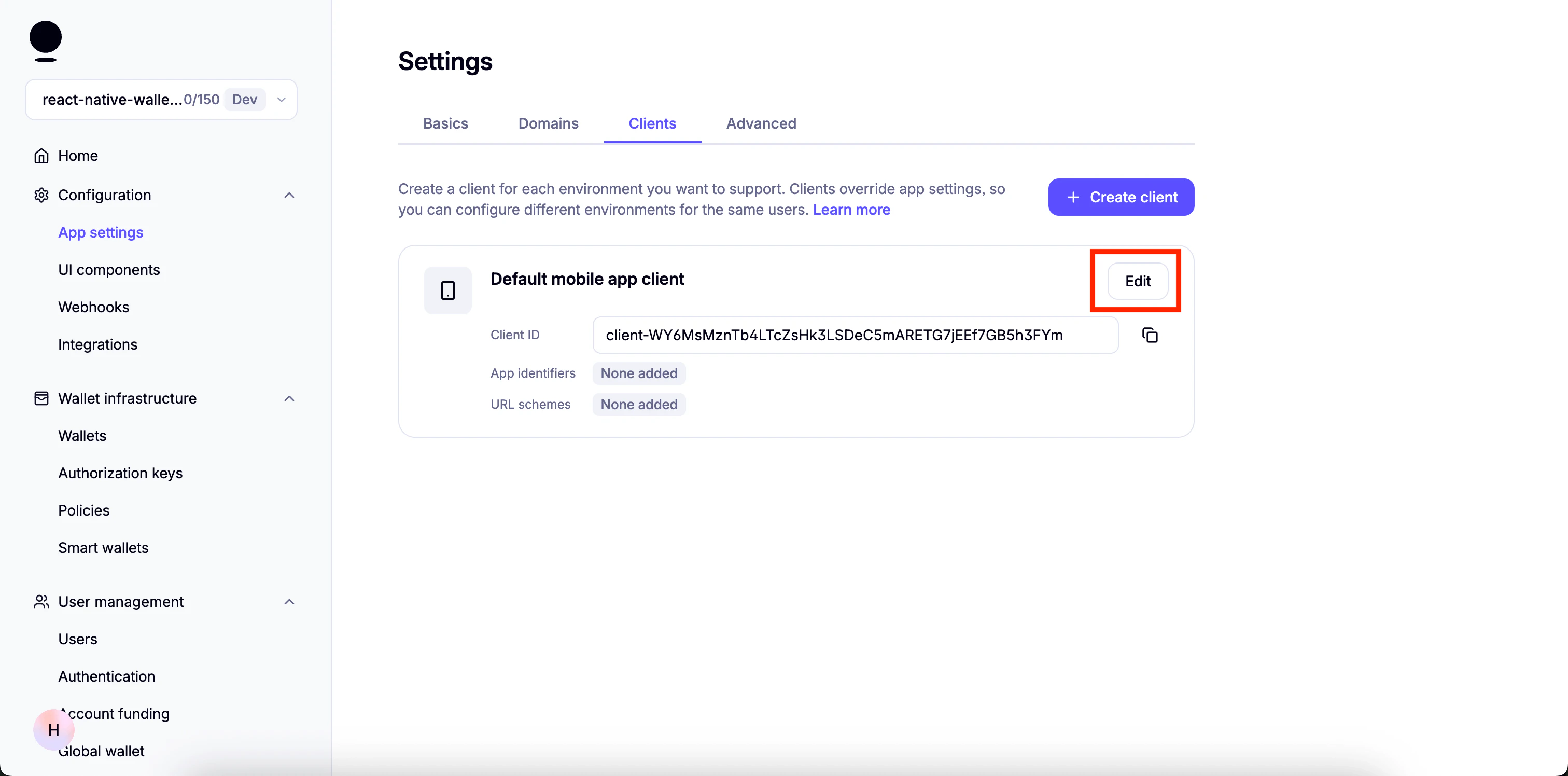
  1. Click on the Clients tab at the top, then click Edit.
clients
  1. Under Allowed app identifiers, paste the name of the app bundle and click Add.
You will find the app bundle name in app.json. For Android, it is the package property. For iOS, it is the bundleIdentifier property.allowed identifiers
  1. Copy the Client ID and use it as the value for EXPO_PUBLIC_PRIVY_CLIENT_ID.
client_id
  1. Sign up on Pimlico and go to “API Keys”:
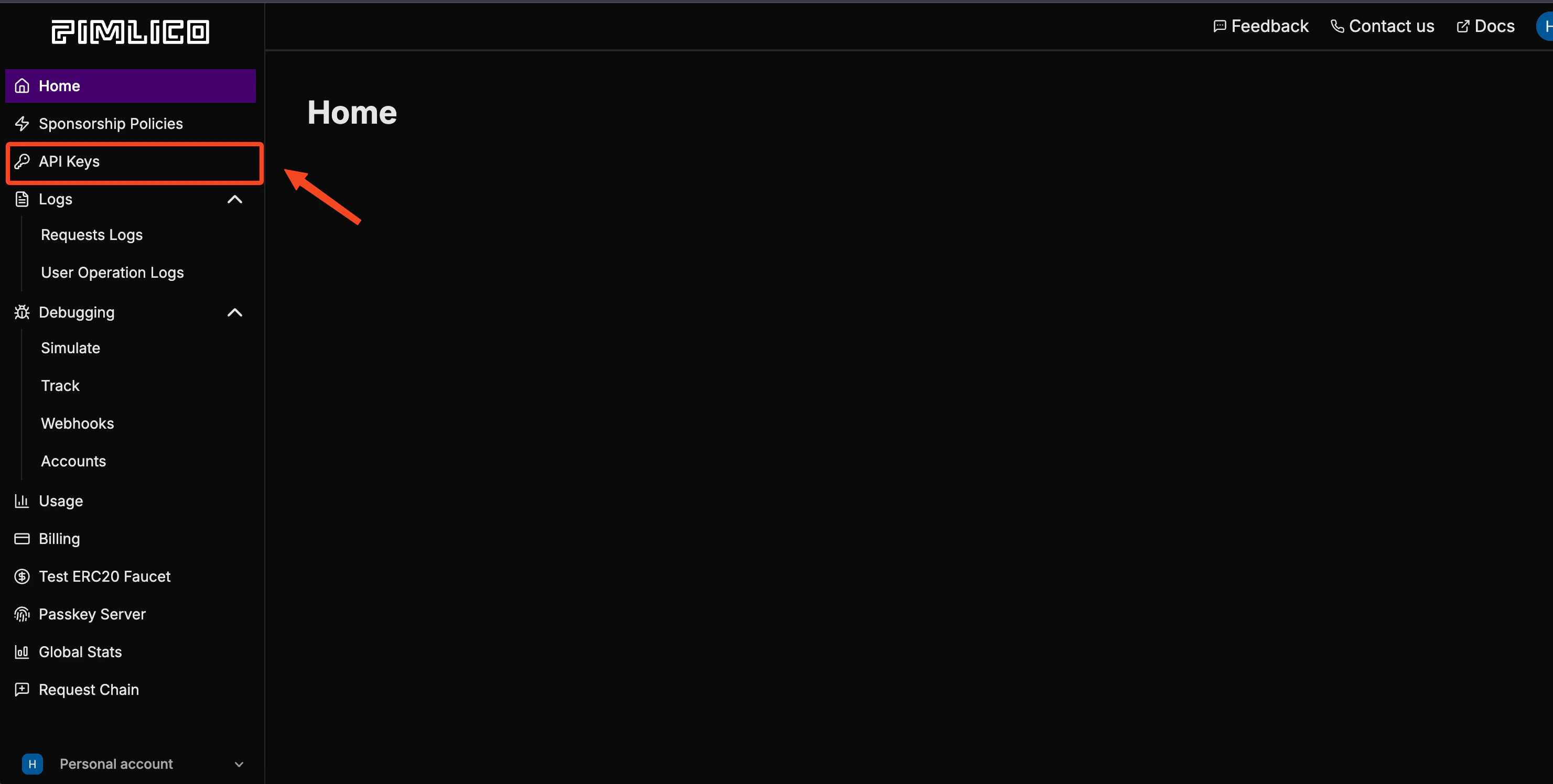
pimlico_dashboard
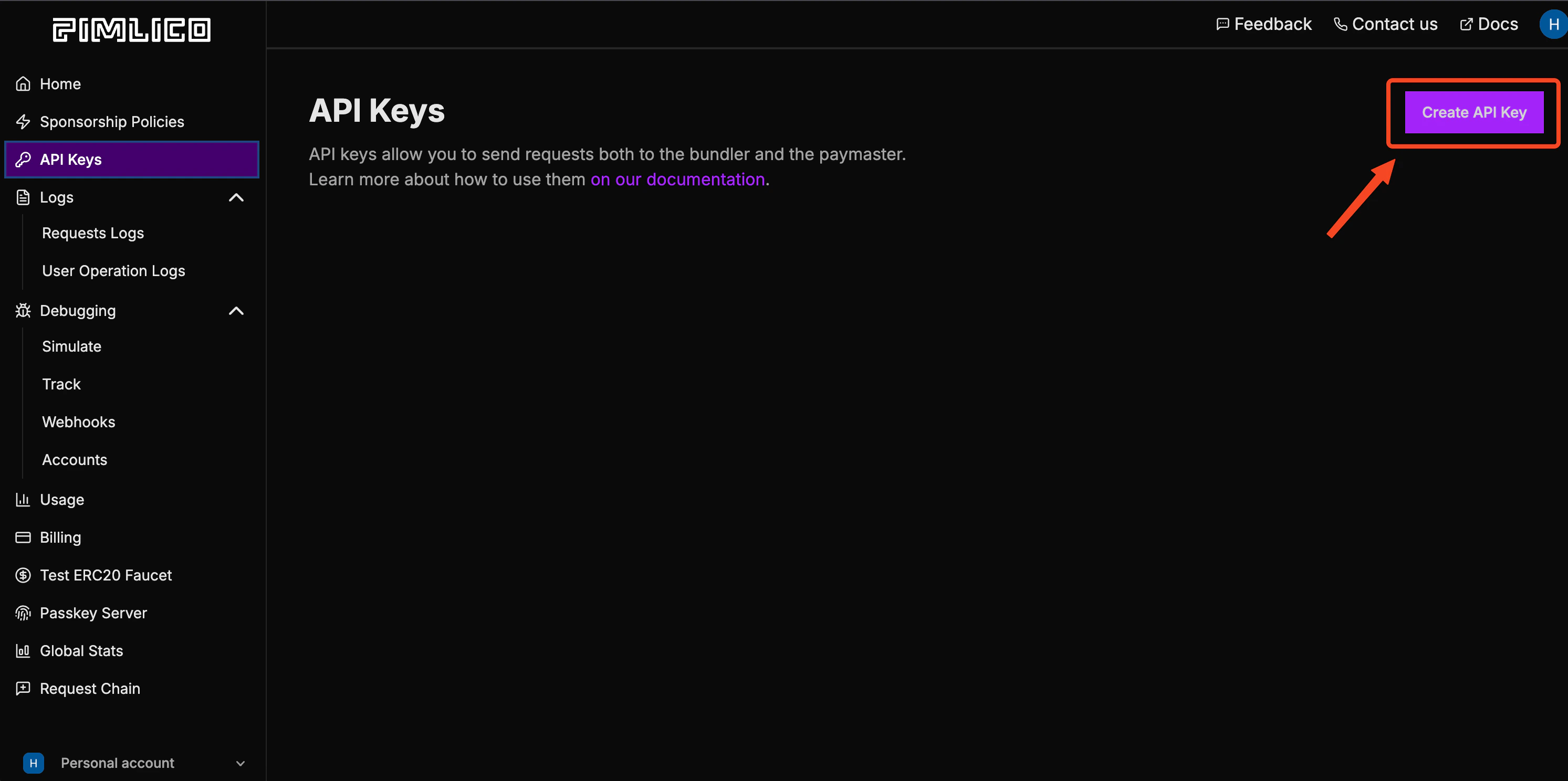
  1. Create a new API key:
create_api_key
  1. Click on “RPC URLs”:
rpc_urls
  1. Search for Monad Testnet and copy the URL. Use this as EXPO_PUBLIC_PIMLICO_BUNDLER_URL:
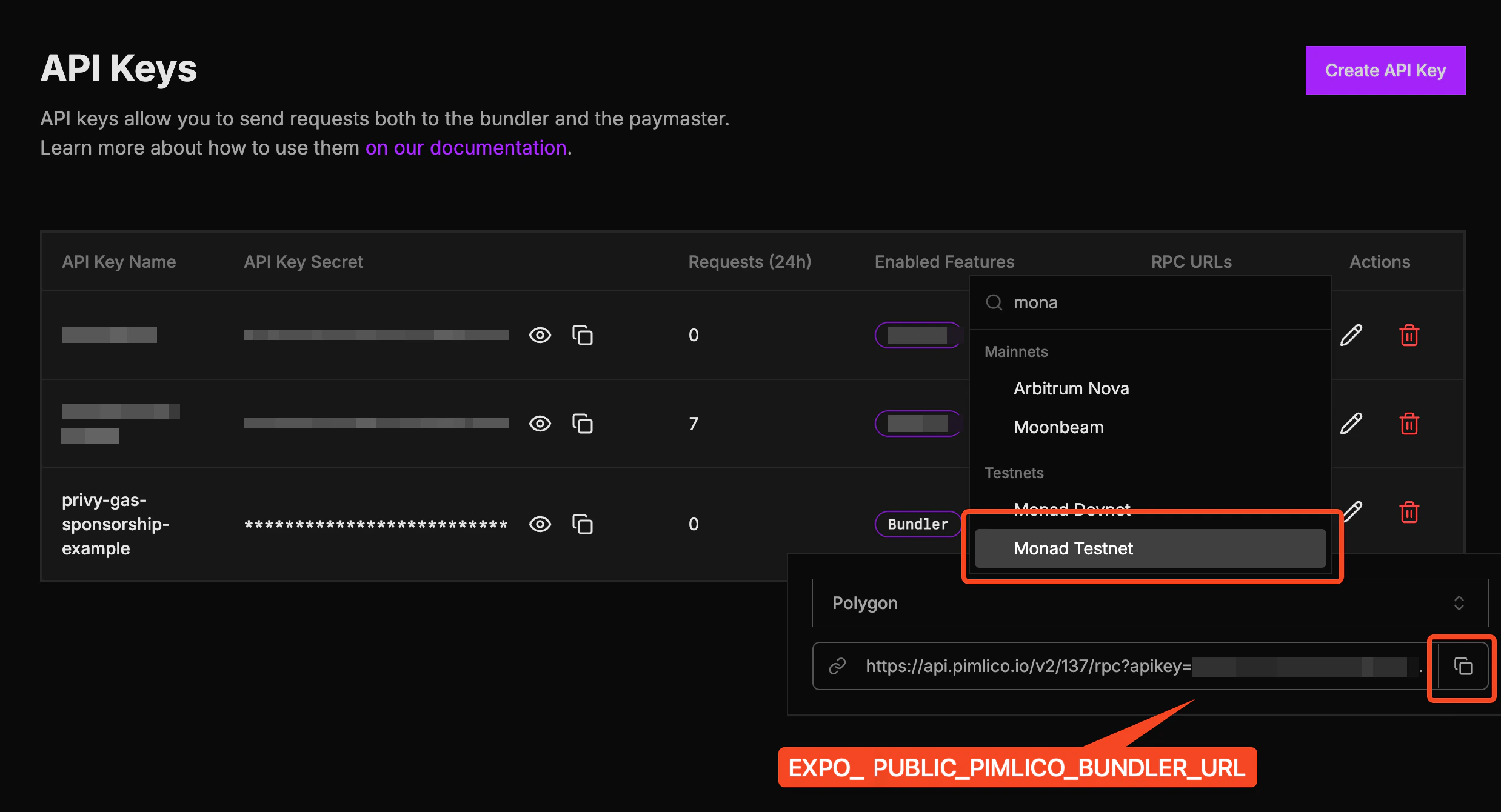
monad_testnet_rpc_url

Start the app

Start the app either in the Expo Go app, or natively. In the Expo Go app:
  • For iOS:
    npm run ios
    
  • For Android:
    npm run android
    
As a native app build:
  • For iOS:
    npx expo run:ios
    
  • For Android:
    npx expo run:android
    

Template folder structure

react-native-privy-pimlico-gas-sponsorship-template/
  ├── app/                                   # Expo router entrypoint
  │   ├── _layout.tsx                        # Root layout
  │   └── index.tsx                          # First screen
  ├── assets/
  │   ├── images/ 
  │   │   ├── adaptive-icon.png
  │   │   ├── favicon.png
  │   │   ├── icon.png
  │   │   ├── monad-logo-inverted.png
  │   │   └── monad-logo.png
  │   └── readme/                            
  ├── constants/
  │   └── Colors.ts
  ├── hooks/
  │   └── useSmartWallet.tsx                 # Smart wallet utilities
  ├── screens/
  │   └── Home.tsx                           # Start here
  ├── types/
  │   └── react-native-qrcode-styled.d.ts
  ├── app.json                               # App properties
  ├── babel.config.js
  ├── eas.json
  ├── entrypoint.js
  ├── eslint.config.js
  ├── metro.config.js                        # Configuration for Hermes and Polyfills
  ├── package-lock.json
  ├── package.json
  ├── README.md
  └── tsconfig.json

Send sponsored transactions

Below is an example of how to use the useSmartWallet hook to send sponsored transactions. You can either modify the code to send your own transactions or integrate it into your existing project.
...

// Use `useSmartWallets` hook
const { smartAccountAddress, smartAccountClient, smartAccountReady } = useSmartWallet();

...

// Send sponsored transaction
const txHash = await smartAccountClient?.sendTransaction({
  account: smartAccountClient?.account,
  chain: monadTestnet,
  to: NFT_CONTRACT_ADDRESS,
  data,
});

...

Send batch sponsored transactions

You can also send batches of sponsored transactions:
const txHash = await smartAccountClient?.sendTransaction({
  calls: [
    {
      to: NFT_CONTRACT_ADDRESS,
      data,
    },
    {
      to: NFT_CONTRACT_ADDRESS,
      data,
    },
  ],
});
This example uses the Kernel smart account with Entrypoint v7. See useSmartWallet.tsx to inspect the implementation details.

Modify the app name

iOSAndroid
Edit the name property in app.json:
app.json
{
   "expo": {
      "name": "wallet-app", <--- Edit this
      ...
   }
}  

Modify the app icon and splash screen

App icon

iOSAndroid
You can edit the app icon by replacing assets/images/icon.png. Recommended app icon size is 1024x1024. If you name the icon file something else, then edit the icon property in app.json accordingly.
app.json
{
   "expo": {
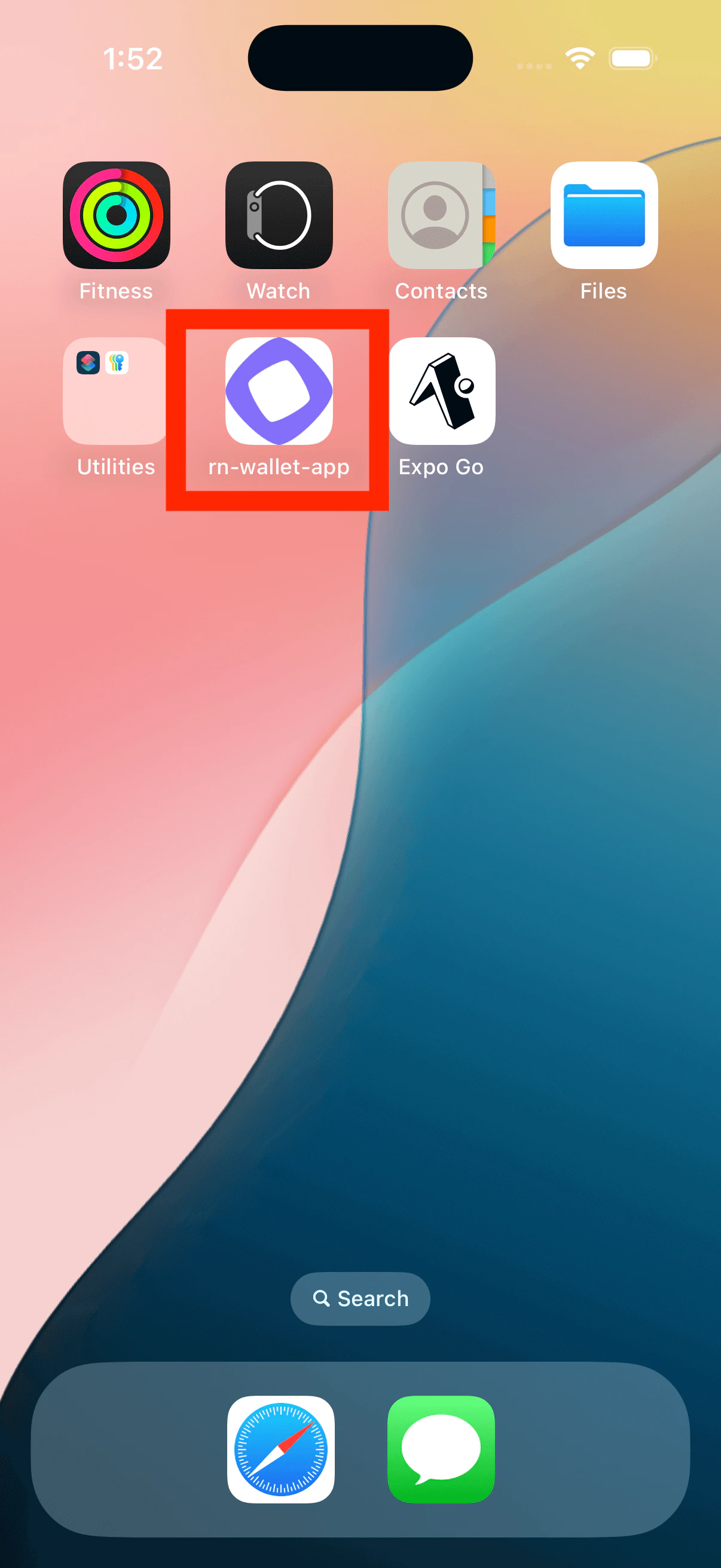
      "name": "rn-wallet-app",
      ...
      "icon": "./assets/images/icon.png", <--- Change this
      ...
   }
}

Splash screen

iOSAndroid
Edit the splash object in app.json to modify the splash screen.
app.json
{
   "expo": {
      "name": "rn-gas-sponsorship-app",
      ...
      "splash": { <--- Edit this object
         "image": "./assets/images/icon.png",
         "backgroundColor": "#ffffff"
      }
   }  
}

Change fonts

You can create a fonts folder inside assets to store your custom font files. To use the custom font, load the font in app/_layout.tsx. Example:
app/_layout.tsx
const [loaded] = useFonts({
  "SF-Pro-Rounded-Black": require("../assets/fonts/SF_Pro_Rounded/SF-Pro-Rounded-Black.otf"),
  "SF-Pro-Rounded-Bold": require("../assets/fonts/SF_Pro_Rounded/SF-Pro-Rounded-Bold.otf"),
  "SF-Pro-Rounded-Heavy": require("../assets/fonts/SF_Pro_Rounded/SF-Pro-Rounded-Heavy.otf"),
  "SF-Pro-Rounded-Medium": require("../assets/fonts/SF_Pro_Rounded/SF-Pro-Rounded-Medium.otf"),
  "SF-Pro-Rounded-Regular": require("../assets/fonts/SF_Pro_Rounded/SF-Pro-Rounded-Regular.otf"),
  "SF-Pro-Rounded-Semibold": require("../assets/fonts/SF_Pro_Rounded/SF-Pro-Rounded-Semibold.otf"),
  Inter_400Regular,
  Inter_500Medium,
  Inter_600SemiBold,
});

Modify the deeplinking scheme

Edit the scheme property in app.json to select your custom deeplinking scheme:
app.json
{
  "expo": {
    ...
    "scheme": "rnwalletapp",
    ...
  }
}
For example, if you set this to rnwalletapp, then rnwalletapp:// URLs would open your app when tapped. This is a build-time configuration; it has no effect in Expo Go.

Edit the landing screen

You can edit the landing page by editing screens/Home.tsx. In the demo branch, we ended up adding more complex functionality, which is why Home.tsx became a folder.

Modify the package/bundle identifier

When publishing app to the app store, you need to have a unique package/bundle identifier, which you may set in app.json.
Don’t forget to change the identifier in Privy dashboard
app.json
{
  "expo": {
    "name": "rn-gas-sponsorship-app",
    ...
    "ios": {
      "bundleIdentifier": "com.anonymous.rn-wallet-app", <--- Edit this
      ...
    },
    "android": {
      ...
      "package": "com.anonymous.rnwalletapp" <--- Edit this
    },
  }
}

Check out the demo app

If you’d like to try a completed version of the app before you start developing, switch to the demo branch:
git checkout demo

Demo app folder structure

react-native-privy-pimlico-gas-sponsorship-template/
  ├── app/
  │   ├── _layout.tsx                        # Root layout of the project
  │   └── index.tsx                          # This is the landing page
  │   └── sign-in/                           # Unauthenticated user gets redirected to /sign-in
  ├── assets/
  │   ├── fonts/                             # Custom fonts go here
  │   │   └── SF_Pro_Rounded/                # Custom font example
  │   └── images/
  │       ├── adaptive-icon.png
  │       ├── favicon.png
  │       ├── icon.png
  │       ├── monad-icon.png
  │       ├── monad-logo-inverted.png
  │       ├── monad-logo.png
  │       ├── partial-react-logo.png
  │       └── splash-icon.png
  ├── components/
  │   └── ui/
  ├── constants/
  │   ├── abi.json                           # NFT smart contract ABI
  ├── context/
  │   ├── AuthContext.tsx
  ├── hooks/
  │   ├── useSmartWallet.tsx                 # Hook with smart wallet related functions
  ├── screens/
  │   ├── Email/                             # Screen that asks for email
  │   ├── Home/                              # NFT minting screen (Authenticated users only)
  │   └── OTP/                               # Screen that asks for the OTP code sent to email
  ├── types/
  ├── utils.ts
  ├── entrypoint.js
  ├── app.json
  ├── babel.config.js
  ├── eas.json
  ├── eslint.config.js
  ├── metro.config.js
  ├── package.json
  ├── package-lock.json
  ├── README.md
  ├── tsconfig.json

Learn more

To learn more about developing your project with Expo, Privy, and Monad, check out the following resources: Please report any issues here.